





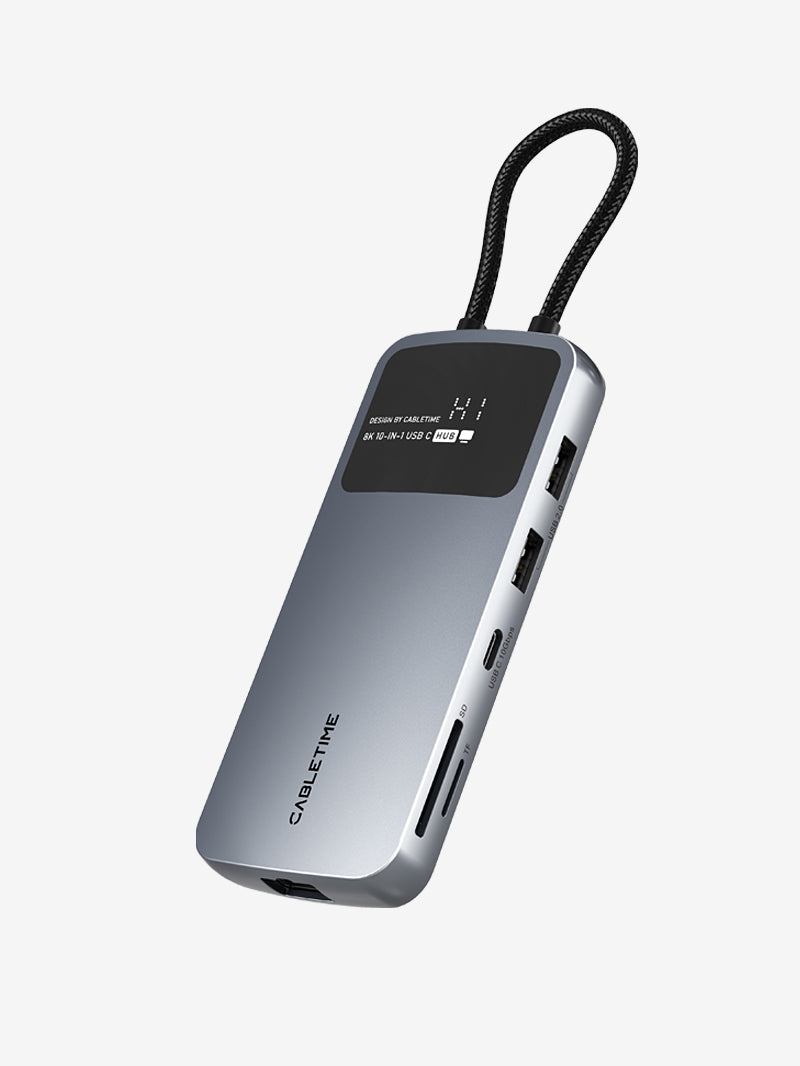
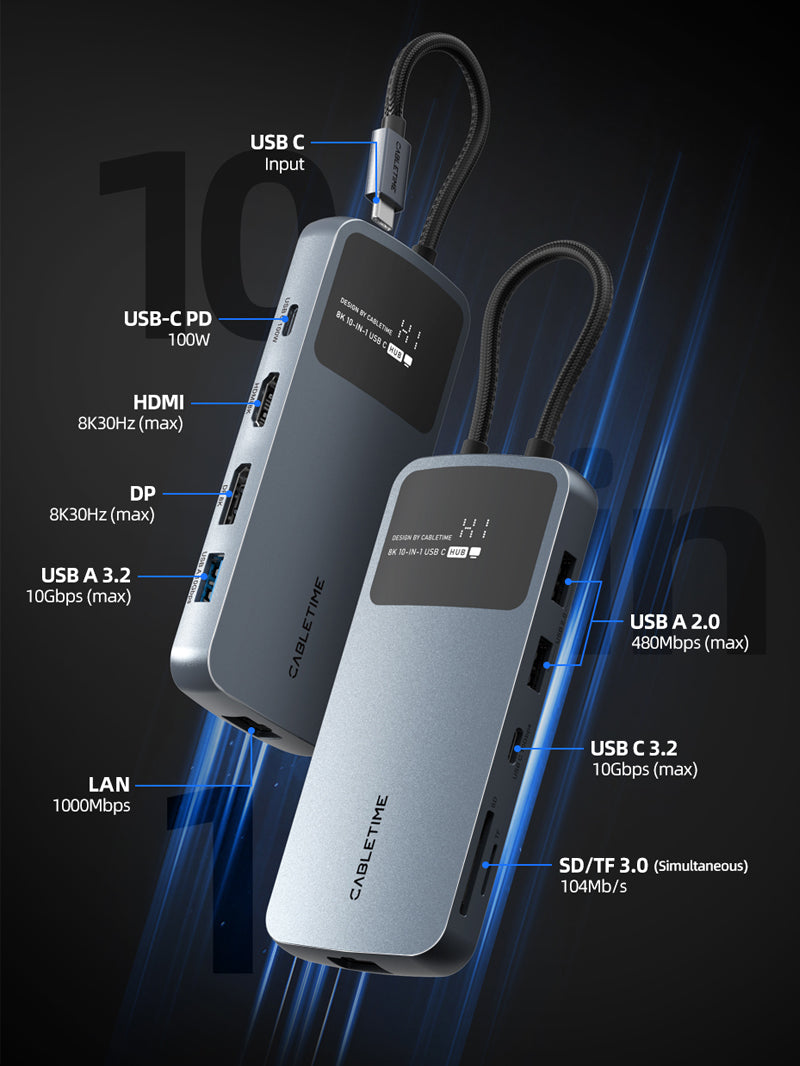
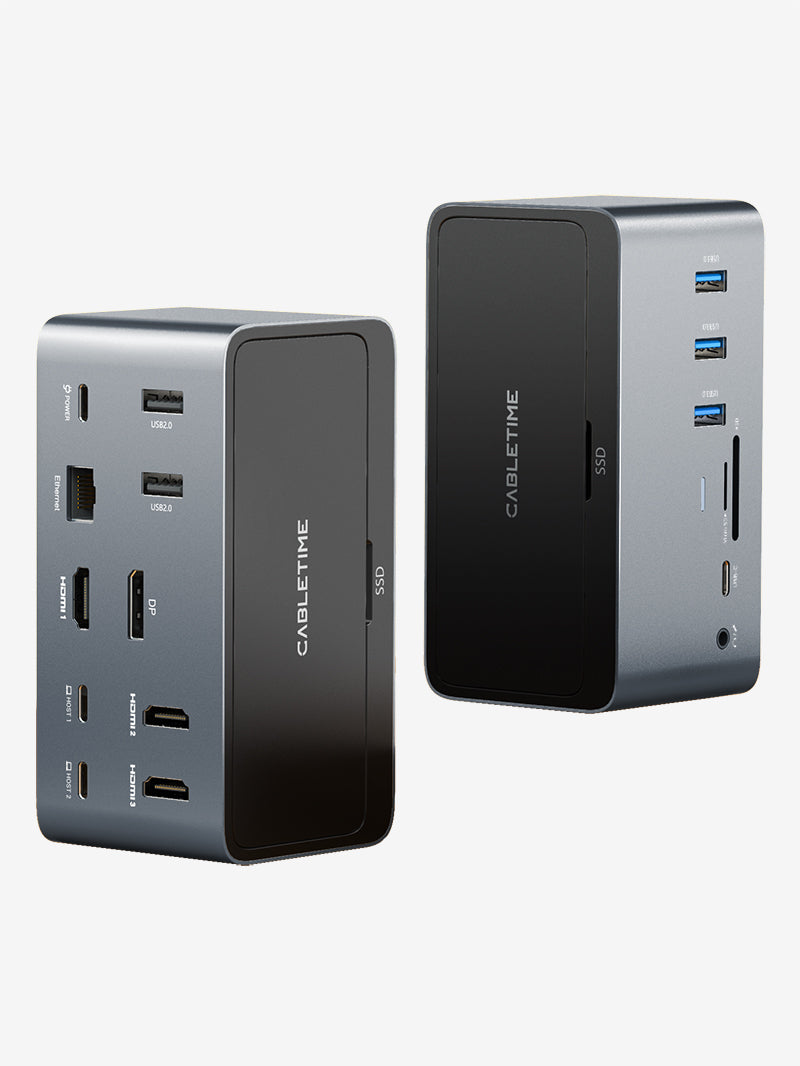
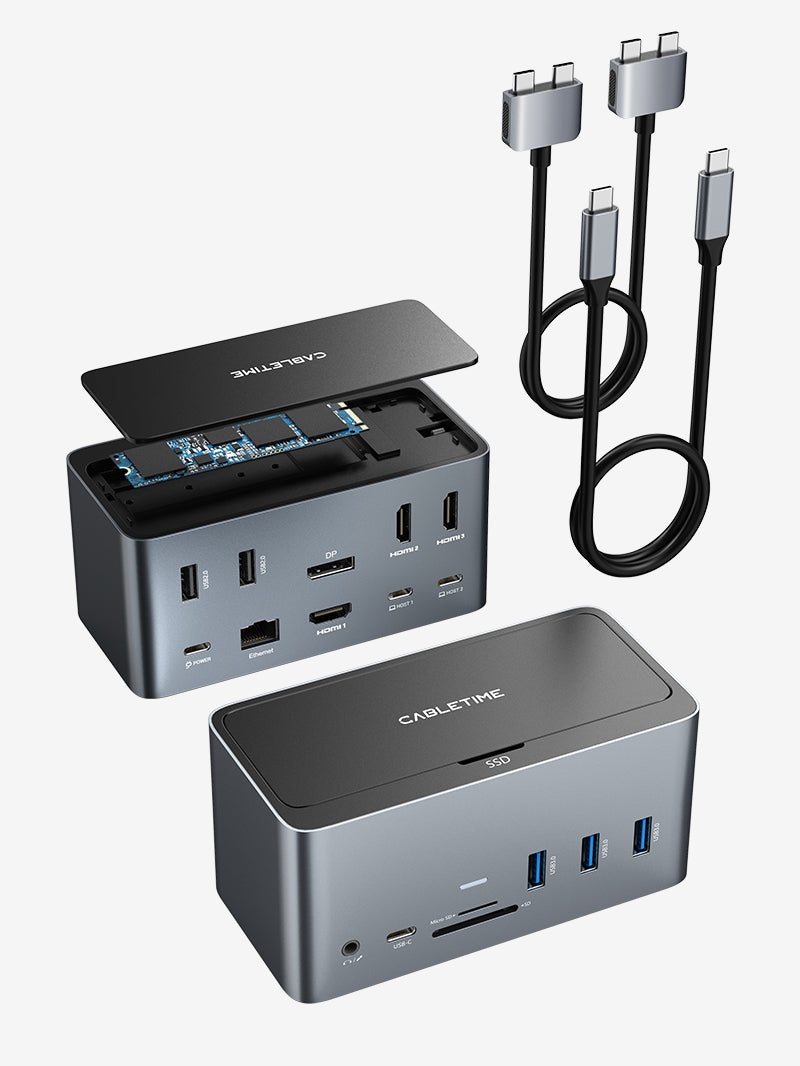


If you use a laptop stand, you’ve probably run into this exact frustration — and maybe never even realised there’s a simple fix.
Here’s the situation: you buy a USB-C hub to give your MacBook or laptop more ports. You plug it in, everything works, great. Then you put your laptop on a stand to save your neck, raise the screen to eye level, connect a proper keyboard and mouse — and suddenly the hub is dangling in mid-air off the side of your laptop, cable pulled tight, the whole thing swaying every time you move the keyboard.
A USB-C hub dangling off the side of a laptop, cables fighting for dominance — it works, technically. But it creates friction every single day.
That was my setup for longer than I care to admit. The hub would sometimes disconnect when I accidentally nudged it. The short cable was putting constant strain on my laptop’s USB-C port. And my desk looked like I was running a small server room, not a home office.
The fix cost me less than $10 and took two minutes to set up: a USB-C extension cable.
- 1. Why the Hub Cable Is So Short in the First Place
- 2. What Is a USB-C Extension Cable?
- 3. How to Choose the Right USB-C Extension Cable for Your Hub
- 4. The CABLETIME USB-C 3.2 Gen2 Extension Cable
- 5. Why Using a USB-C Extension Cable Is Worth It (Beyond Fixing the Short Cable Problem)
- 6. Who This Setup Is Actually For
- 7. Compatibility
- 8. Frequently asked questions (FAQs)

Why the Hub Cable Is So Short in the First Place
Most USB-C hubs ship with a cable between 0.15m and 0.2m — that’s roughly 6 to 8 inches. Manufacturers keep it short for a reason: shorter connections reduce the risk of signal interference when streaming 4K video or transferring large amounts of data quickly, and the compact design makes the hub portable and easy to set up.
That logic makes sense if you’re plugging the hub directly into a laptop sitting flat on a desk. But the moment you elevate that laptop on a stand — even a modest 10cm riser — that 15cm cable becomes completely inadequate. The hub either hangs in the air, rests at an awkward angle, or forces you to place the laptop so close to the desk edge that the stand barely helps.
Most traditional USB-C hubs have cables less than a foot long, forcing the hub to sit directly next to the laptop and creating a tangled mess of wires. With more length, you gain control — the hub can be repositioned to a side shelf, under the desk, or in a stable position on the surface itself.
A USB-C extension cable bridges that gap. Instead of the hub connecting directly to your laptop, the extension cable runs from your laptop’s port down to wherever your hub sits comfortably on the desk. Clean, stable, no strain on the port.

What Is a USB-C Extension Cable?
A USB-C extension cable is a male-to-female cable — one end has a standard USB-C plug (male) that goes into your laptop, the other end has a USB-C socket (female) that your hub plugs into. It effectively moves the USB-C port from your laptop to wherever you place the other end of the cable.
The important thing to understand is that not all USB-C extension cables are the same. The connector shape is identical across all of them, but the internal specs vary enormously. A cheap cable might only carry power and basic USB 2.0 data — plug your hub into it and you’ll lose high-speed data, video output, or both. A proper Gen2 extension cable carries everything: full 10Gbps data, 100W power delivery, and 4K@60Hz video simultaneously.
The hub’s USB ports can stop working entirely if the extension cable is the wrong spec — the hub appears connected but data doesn’t flow, because the cable creates a bottleneck that breaks the signal.
So choosing the right one matters.

How to Choose the Right USB-C Extension Cable for Your Hub
There are three things to check before buying. Get all three right and the cable will be completely invisible to your setup — everything just works at full speed.
1. Data — Look for USB 3.2 Gen2 (10Gbps)
This is the most commonly ignored spec and the most commonly wrong one on cheap cables.
Most USB-C hubs today support USB 3.2 Gen2, meaning data transfers up to 10Gbps. If your extension cable is only Gen1 (5Gbps) or worse, USB 2.0 (480Mbps), you’re cutting the performance of your entire hub in half — or down to a fraction. For most desk setups, a 0.5m or 1m cable at Gen2 is the sweet spot.
The listing should explicitly say “USB 3.2 Gen2” or “10Gbps.” If it just says “USB-C extension cable” with no speed mentioned, walk away.
2. Power — Look for 100W / 5A with E-Marker Chip
If your hub passes power through to charge your laptop (most good ones do), the extension cable has to be able to carry that wattage without throttling or dropping the charge entirely.
Here’s the catch: cables rated above 60W are required to contain an E-Marker chip — a tiny microchip inside the connector that tells your laptop and charger exactly what the cable can handle. Without it, charging gets capped at 60W regardless of your charger’s output, or fails to negotiate properly with the hub at all.
The product listing should state “100W / 5A / 20V” and mention a built-in E-Marker chip. If it only says “fast charging” with no wattage figure, that’s a red flag.
3. Video Output — Look for 4K@60Hz (DisplayPort Alt Mode)
If you’re using your hub to drive an external monitor — which most people with this kind of desk setup are — the extension cable needs to support DisplayPort Alternate Mode. This is what carries the video signal through a USB-C cable.
A cable that supports only data and charging will leave your monitor dark or stuck at a low resolution. The spec to look for is 4K@60Hz, ideally with HDR support. If the listing mentions 4K, confirm it also states 60Hz — 4K@30Hz is noticeably choppy for everyday use.

The CABLETIME USB-C 3.2 Gen2 Extension Cable
This is the cable I use and the one I’d recommend for this exact use case.
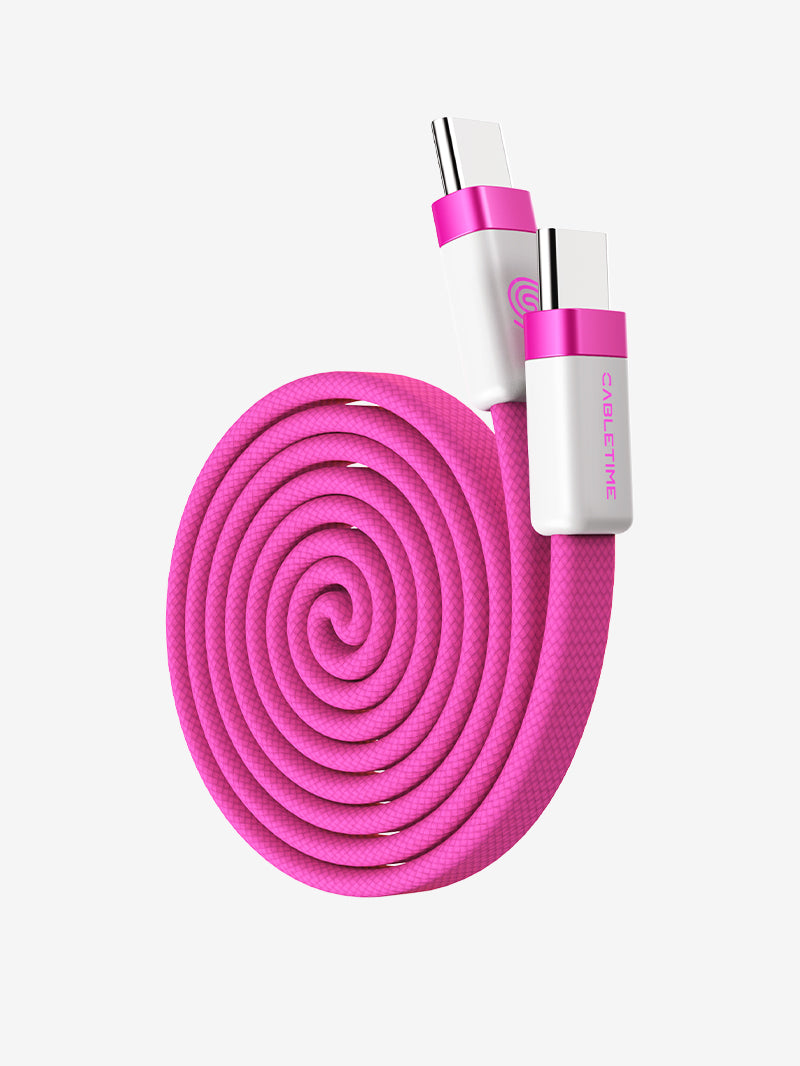
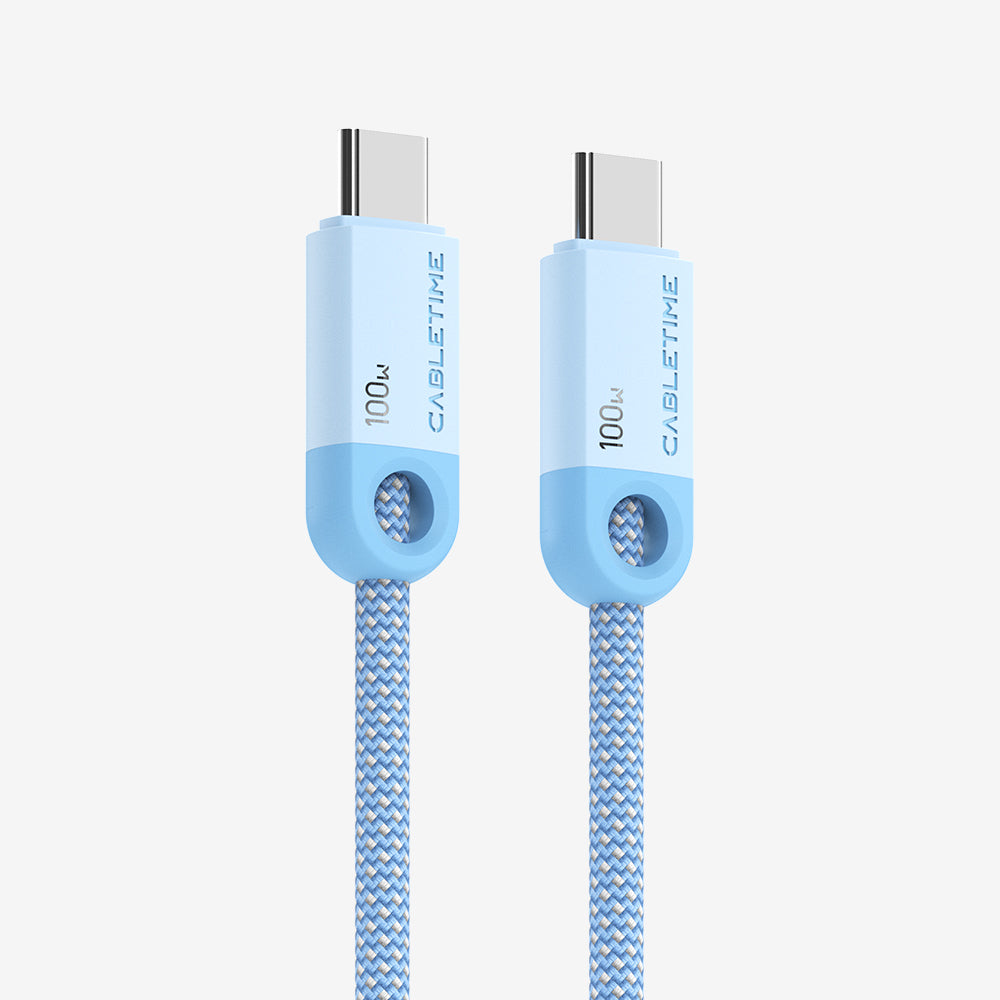
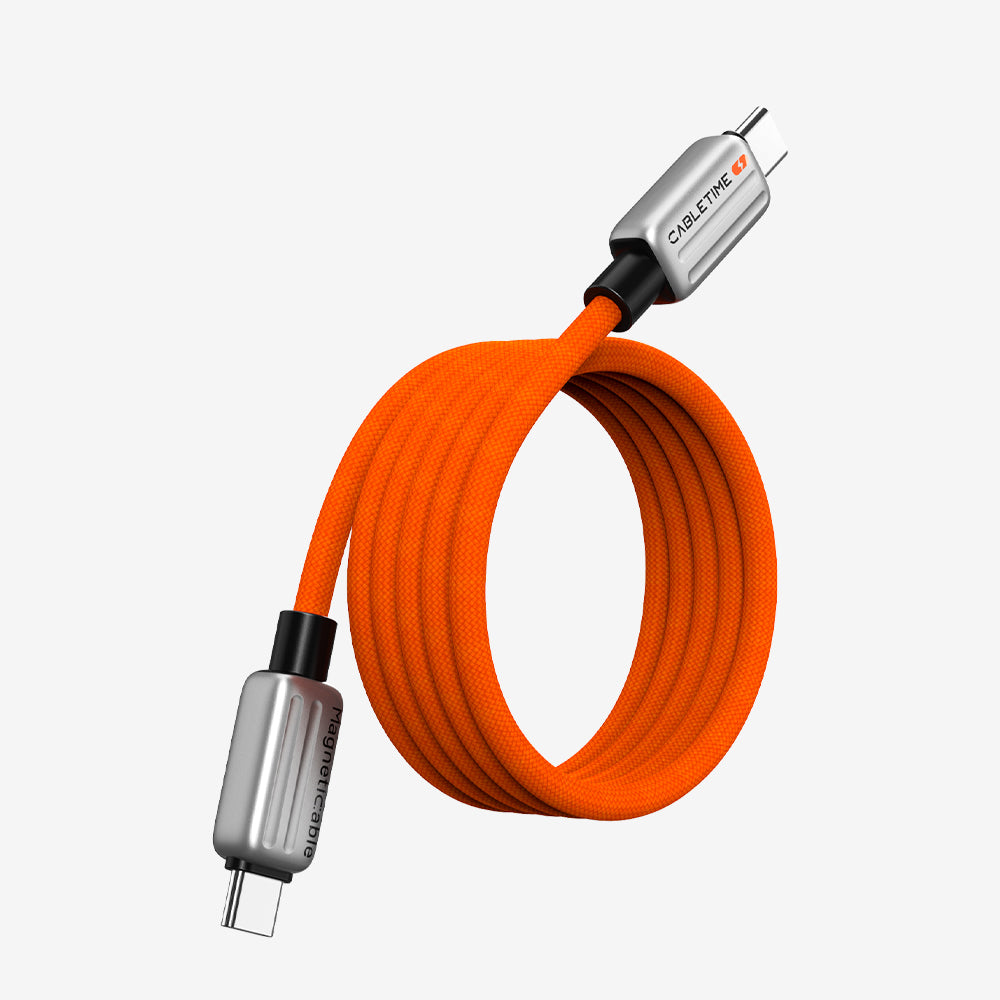
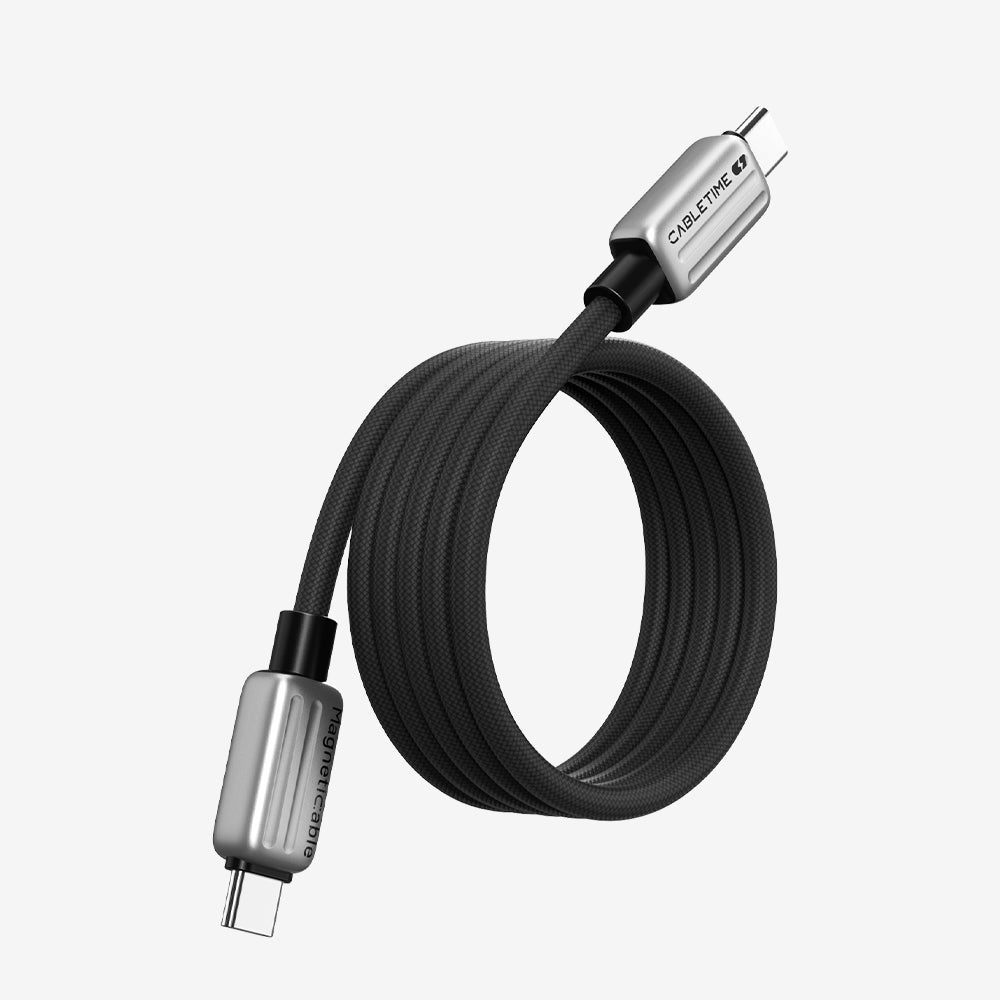
It hits every spec above without costing a fortune. It’s USB 3.2 Gen2 at 10Gbps, supports 100W/5A power delivery with a built-in E-Marker chip, and outputs 4K@60Hz with HDR. The connector is nickel-plated, the housing is space grey aluminium, and the cable itself is nylon braided — it sits flat on a desk without curling or fighting you.
It comes in three lengths: 0.5m, 1m, and 2m. For a typical desk setup with a laptop stand, the 0.5m is the one most people need — it’s enough to drop the hub down from laptop height to the desk surface with slack to spare. The 1m works well for corner desks or if your hub lives off to one side. The 2m is for TV setups or under-desk cable routing.
One honest note: a reviewer mentioned the cable feels slightly stiff out of the box. That’s true — the nylon braid is dense, which is why it lasts. It loosens up a little over time and it doesn’t kink, which is the trade-off worth making.
Price is $9.49.
→ Shop the CABLETIME USB-C Gen2 Extension Cable

Why Using a USB-C Extension Cable Is Worth It (Beyond Fixing the Short Cable Problem)
Most people buy a USB-C extension cable to solve one specific frustration — the hub cable is too short. That’s enough reason on its own. But once you actually use one, you realise it does several other things for your setup that nobody really talks about when selling them.
1. It Protects Your Laptop’s Most Vulnerable Port
This is the one I didn’t think about until I almost broke a port.
On most modern laptops — MacBook Air, MacBook Pro, Dell XPS, basically anything from the last five years — the USB-C port does everything. It charges the laptop, connects the monitor, connects the hub. If that port fails, you lose all of it at once.
Frequent use of a port causes the connectors to erode or shift position, preventing stable contact — the consequence is a non-working or partially disabled device. By adding an extension cable to the mix, you shift that potential damage to a more easily replaceable item.
The math here is stark. On an M1 MacBook Air, an out-of-warranty USB-C port repair was quoted at $500 at the Apple Store. The CABLETIME extension cable costs $9.49. You plug the extension cable into the laptop once, and from that point the daily plugging and unplugging happens at the other end — the female port of the extension cable, which is the part that wears out. When that eventually wears out, you replace a $9.49 cable, not a logic board.
Since you’re no longer repeatedly plugging and unplugging directly into the device, you save the port from gradual wear and tear — this is arguably the most important benefit of using an extension cable.
2. It Gives You Flexible Hub Placement
Without an extension cable, your hub goes wherever the laptop port is. That’s usually at the edge of the desk, elevated on the stand, awkward to reach. With a 0.5m or 1m extension, you can put the hub wherever it actually makes sense:
• Flat on the desk surface, in the corner where cables are already routed
• Clipped under the desk with a cable management tray
• Behind the monitor where it’s out of sight entirely
• On the right side of the desk even when the laptop port is on the left
With more cable length, you gain control over peripheral positioning — external hard drives, USB microphones, and card readers no longer have to clutter the laptop area, and the result is less visual distraction and a more breathable workspace.
This sounds minor until you sit down at a clean desk for the first time. It’s a noticeable difference.
3. It Reduces Strain on the Hub’s Own Cable
USB-C hubs have a fixed cable that can’t be replaced. It’s soldered or sealed inside the unit. When that cable develops a fault — usually from constant bending stress near the connector — the whole hub is dead.
With a laptop on a stand, the angle between the laptop port and the hub is often sharp. The hub cable bends awkwardly, sometimes at close to 90 degrees if the port is on the side of the laptop and the hub needs to sit lower. Over months, that repeated stress at the connector joint cracks the internal wires.
An extension cable sits flat on the desk and runs straight. The hub sits still. Neither cable is under tension. The bend stress essentially disappears from the equation.
Once the extension cable is plugged in and cable-managed, the laptop-to-desk connection becomes a single female port sitting in a fixed position. Hot-desking between the living room and the home office means unplugging one cable, moving the laptop, plugging into another extension cable at the other location. No untangling. No pulling the hub off the desk. No adapter hunt.
If you ever upgrade your hub, the new hub just plugs into the same extension cable. Your cable management stays intact.
5. It’s a Low-Commitment Solution
Buying a new hub with a longer built-in cable — which is the other common suggestion for this problem — costs $40 to $80+, and you still end up with a fixed-length cable that may or may not suit the desk you move to in a year. A USB-C extension cable costs $9.49, works with any hub, and comes in three lengths so you can pick exactly what your setup needs. If it ever stops working, replacing it costs less than a takeaway coffee.

Who This Setup Is Actually For
The laptop stand + USB-C hub + extension cable combination isn’t just for tech enthusiasts or people obsessing over cable management. It’s the default setup for three very specific groups of people who often don’t realise there’s a name for what they’re building:
Remote workers and WFH setups — you’ve got a laptop, a monitor, an external keyboard and mouse, and probably a webcam or microphone. You need all those peripherals connected reliably, and you don’t want the desk to look like a cable explosion every morning.
Students with a desk setup — a MacBook or similar laptop, a monitor for side-by-side work, a few USB-A devices that need adapters. The hub solves the port shortage; the extension cable solves the short-cable problem that makes the hub annoying.
Anyone who uses a laptop stand — this is really the core group. A flimsy plastic laptop stand, a chunky USB-C hub dangling off the side, and cables fighting for dominance — it works technically, but it creates friction every single day. The extension cable is the one piece that makes the stand-plus-hub setup actually comfortable to live with.
If any of those sound like you, the extension cable isn’t an optional accessory. It’s the missing part of the setup.
Compatibility
The CABLETIME Gen2 cable works with: MacBook Pro / Air (2015–2021), Dell XPS 13/15/17, Nintendo Switch, Samsung DeX Dock, iPad Pro, iMac Pro, Google Chromebook Pixel, USB-C Memory Stick, and any USB-C hub or docking station.
Important: This cable is not compatible with active Thunderbolt 3 docks (e.g. Dell TB15/TB16, Belkin Thunderbolt 3 Dock). Being upfront about this builds trust and prevents returns. Standard USB-C hubs work perfectly.
Do I need a special extension cable for my USB-C hub, or will any cable work?
You need one that matches or exceeds your hub’s specs. If your hub is USB 3.2 Gen2, your extension cable should be too. A generic USB 2.0 extension cable will technically connect the hub but degrade everything to 480Mbps data speeds and likely break video output entirely.
Will adding an extension cable slow down my data transfer speeds?
Not if you choose the right cable. A USB 3.2 Gen2 cable at 0.5m or 1m runs at full 10Gbps. The speed of the slowest link in the chain sets the ceiling, so match the cable spec to your hub spec and you won’t notice any difference.
What length should I get?
For a laptop stand on a regular desk: 0.5m is almost always enough. It gets the hub from laptop-port height down to the desk surface with comfortable slack. If your hub needs to reach the other side of the desk or a shelf, go 1m. The 2m is genuinely for TV or under-desk setups — more than most people need.
Is it safe to charge through an extension cable?
Yes — as long as the cable has an E-Marker chip and is certified. The E-Marker chip is what ensures your charger and laptop negotiate the correct wattage rather than attempting to push 100W through a wire rated for 60W. The CABLETIME cable carries CE, ROHS2, and REACH certifications and includes the E-Marker as standard.


