







When your laptop is on the meeting table and Rally Bar Huddle is beside the display, the included 2.2m USB cable may leave you short. A longer USB connection lets you keep the laptop within reach while the bar stays at the front of the room.
We connected a Lenovo laptop directly to Rally Bar Huddle with our 50m CABLETIME USB-A-to-USB-C Active Optical Cable. Logitech Sync recognized Huddle and displayed its camera preview, and audio worked normally in the tested setup. If you need a longer connection for the same device, here is the cable and setup we used.
What worked over the 50m cable

Our 50m setup, with Huddle’s camera preview visible in Logitech Sync. The full cable is coiled on the table.
| Test item | Our setup and result |
| Video bar | Logitech Rally Bar Huddle, shown as CC4300e in Logitech Sync |
| Cable | CABLETIME 50m USB-A-to-USB-C Active Optical Cable — CUA3W / CT-ACMAG2-ZG50 |
| Connection | Lenovo laptop USB-A → 50m optical cable → Huddle USB-C |
| Camera | Device recognized and camera preview displayed in Logitech Sync |
| Audio | Worked normally in this setup |
CC4300e is the Chinese-market Rally Bar Huddle model identified in Logitech’s regional documentation. That is the device we tested.
Keep the laptop at the meeting table
The longer cable gives you more choice over where the computer goes. Huddle can stay beside the display while a laptop remains on the table, or a room PC sits farther away in a cabinet. You can plan the USB route around the room’s layout.
For the setup we tested, one CABLETIME cable replaced the short USB lead between the laptop and Huddle. We connected it directly, without a USB hub, dock or extra USB extension lead in between.
Why choose this CABLETIME cable for Huddle?
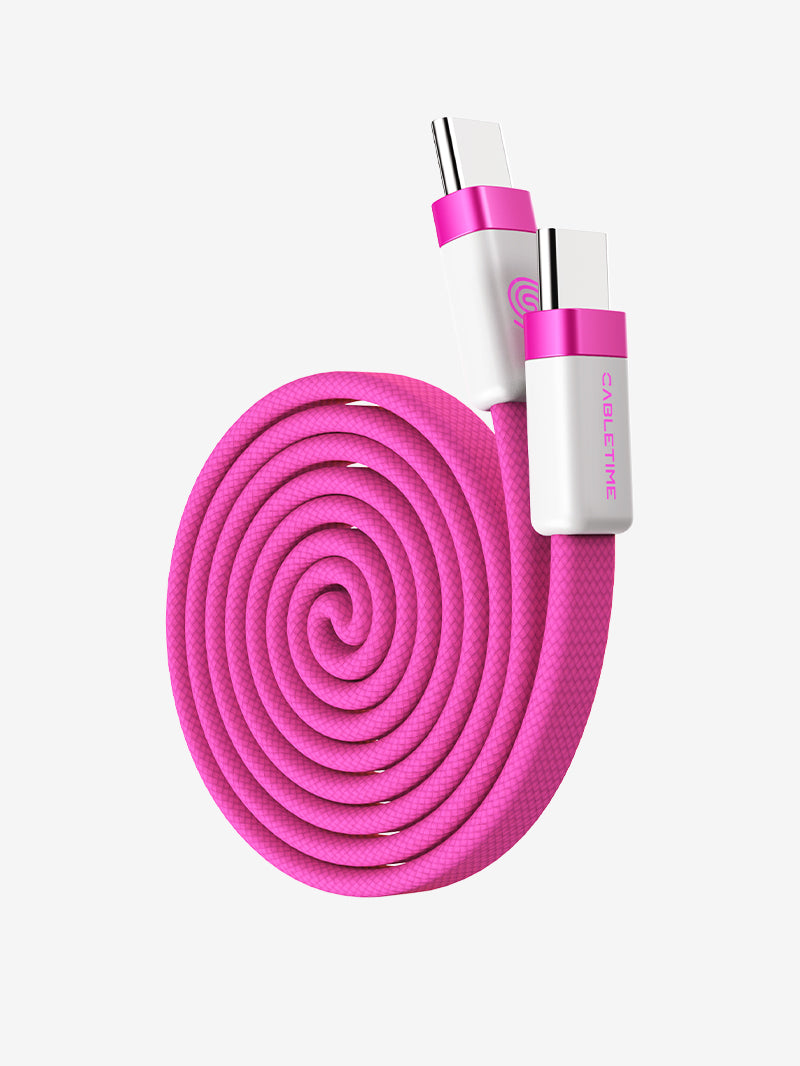
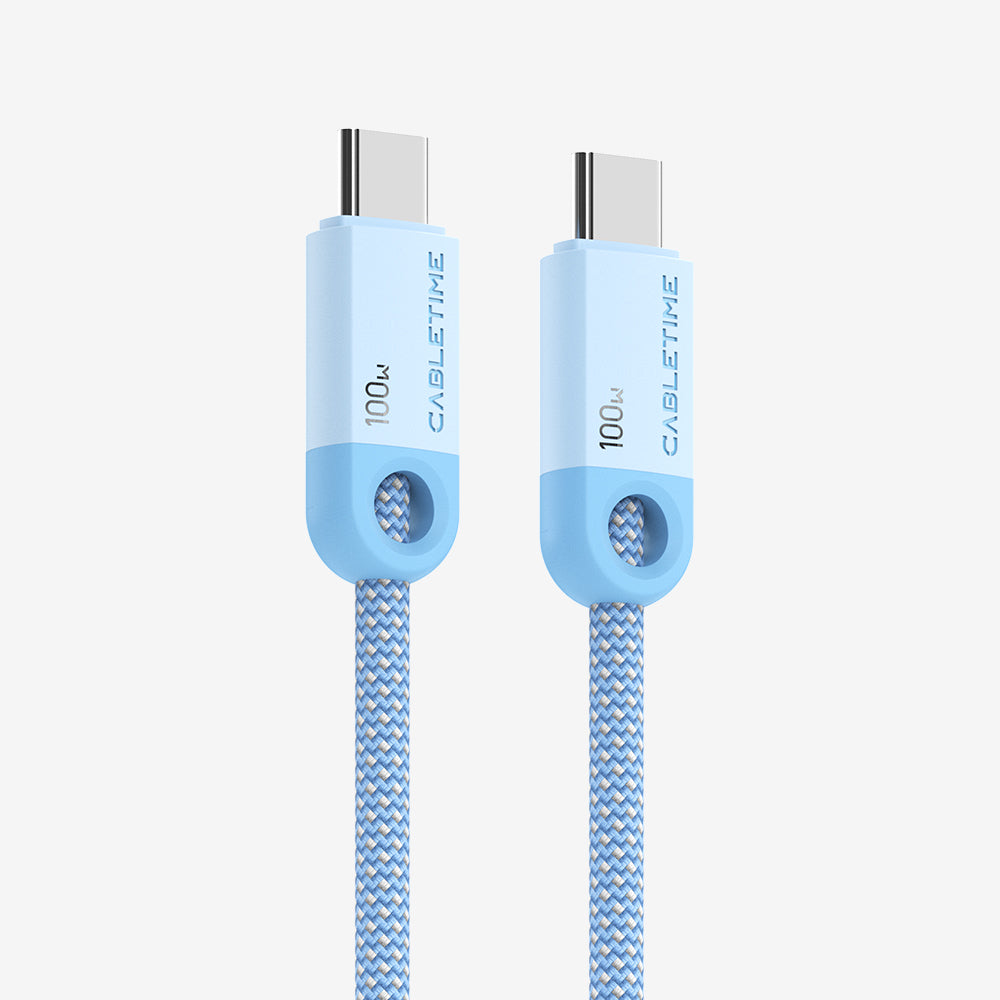
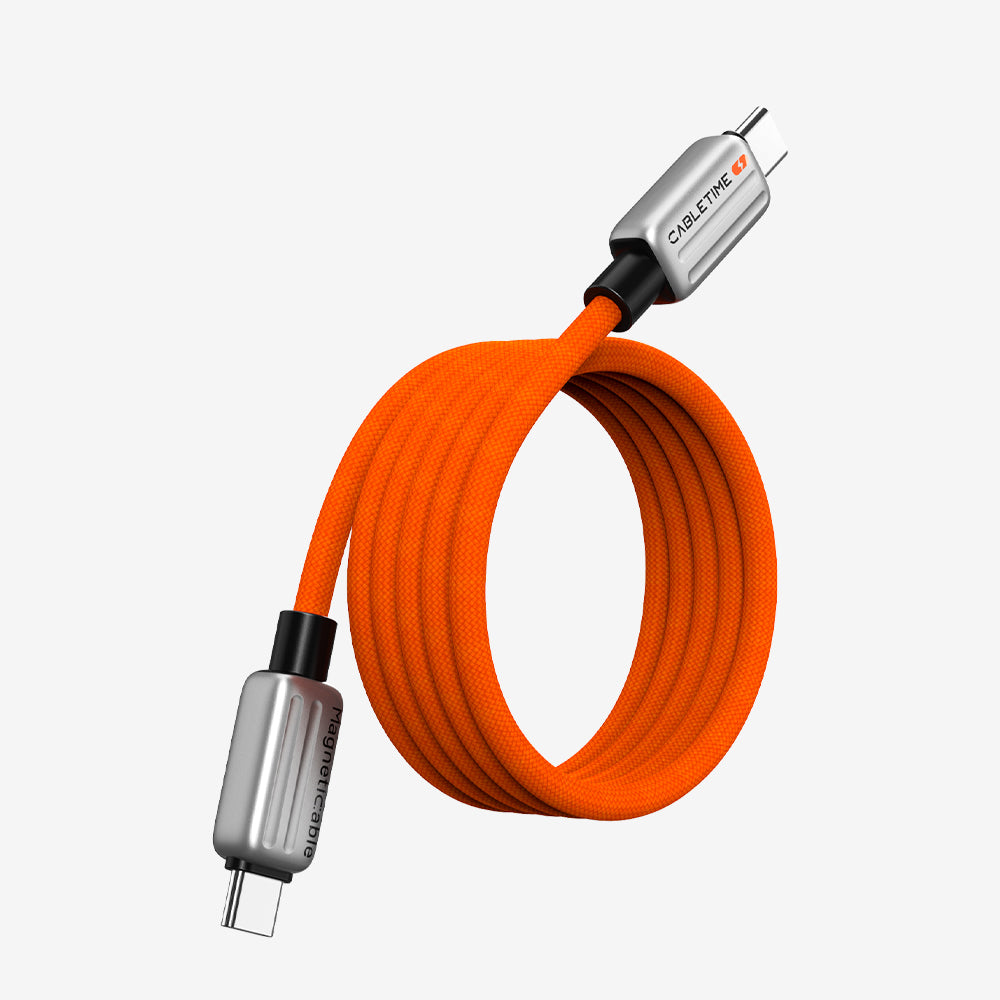
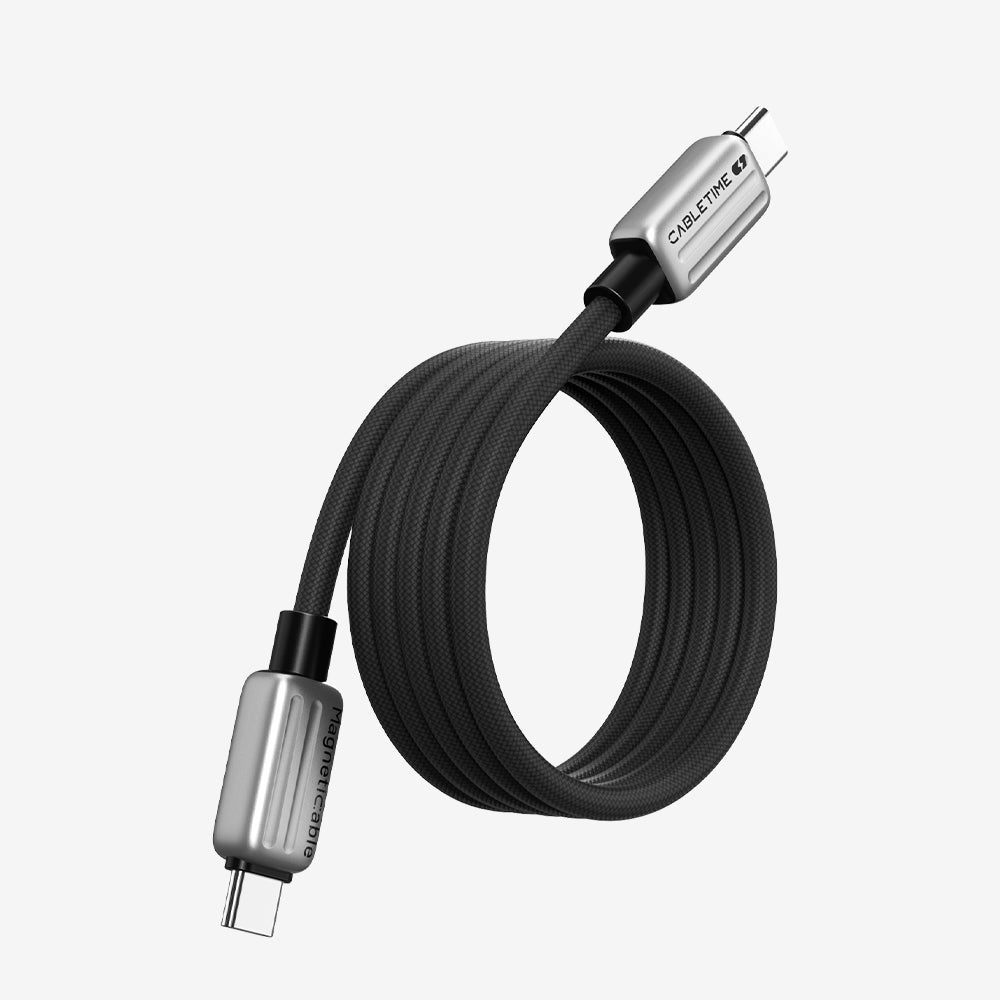
Our CT-ACMAG2-ZG50 USB-A-to-USB-C Active Optical Cable is a 50m USB data cable with active electronics and OM3 optical fiber. It connects a computer’s USB-A port directly to Huddle’s USB-C port.
- Put the computer where you need it. Huddle can stay beside the display while a laptop remains on the meeting table, or a room PC sits farther away in a cabinet. The longer cable gives you room to plan the USB route around furniture and corners.
- Replace the short lead with one long cable. In our setup, it connected directly at both ends, without joining the supplied lead to an extension or adding a USB hub or dock.
- Use the Huddle test to guide your choice. We checked device recognition, camera preview and audio with this 50m version, so you can compare your intended setup with a specific tested connection.
One USB cable from the computer to Huddle
Here is the connection we used:
Computer USB-A port → CABLETIME optical cable → Rally Bar Huddle USB-C port
Plug the USB-A end marked HOST into the computer and the USB-C end into the back of Huddle. Keep the bar connected to its own power supply.

The HOST end connected directly to the laptop’s USB-A port.
Choose the length for your cable route
Measure along the route the cable will follow, including furniture, corners and enough slack to connect the ends comfortably. The route may be longer than the straight-line distance between the laptop and the bar.
If the supplied cable already reaches comfortably, keep using it. For a longer route, the CABLETIME product page lists 10m, 15m, 20m, 30m and 50m options. The Huddle results in this article are for the 50m version. Choose the length your route needs.
The cable uses OM3 optical fiber and active electronics for the long USB connection. It is rated for USB 3.2 Gen 2 data transfer up to 10Gbps, with USB 2.0 compatibility.

The Huddle and CABLETIME cable used for the test. The packaging identifies the 50m version; the plugs are disconnected in this equipment photo.
Active copper cables and dedicated USB extenders can also serve some longer runs. When comparing them, check the USB functions, power requirements and equipment needed at each end.

Check your ports and screen-sharing setup
The direct connection we tested needs USB-A on the computer. If your laptop only has USB-C ports, you will need an adapter or dock, and that additional connection needs to be checked with your setup.
For wired BYOD, keep USB connected for the camera and audio, and add HDMI from the laptop to Huddle’s HDMI In for screen sharing. Logitech explains these separate connections here.
If you want one USB-C connection at the table to handle room equipment and screen sharing, Logitech Extend provides a different setup. The CABLETIME cable here provides the longer USB data connection.
| What you need | Connection to use |
| Huddle’s camera and audio on the computer | Computer USB-A → optical cable → Huddle USB-C, as tested here |
| Laptop screen sharing through the bar to the room display | A separate connection to Huddle’s HDMI In |
| Power for Huddle | The bar’s own power supply |
| Laptop charging | The laptop’s charger or a separate suitable charging setup |
Check the meeting setup before fixing the cable in place
- Use the intended computer and port. Include any adapter or dock, and check guest laptops if the room needs to support them.
- Check camera, microphone and speaker in your meeting app. Select Huddle for each function and ask someone at the other end to confirm the picture and sound.
- Try screen sharing. Include the HDMI connection or other supported sharing solution your room will use.
- Run a representative meeting and reconnect the laptop. Do this before securing the cable along its permanent route.
For a wall or ceiling installation, confirm the exact cable model’s installation rating before ordering.

About our test
We used a Lenovo Windows laptop, Logitech Sync and a 50m cable coiled on the table. We checked device recognition and camera preview, and confirmed normal audio operation. We are not reporting measured resolution, frame rate, throughput or continuous-call duration here. Results for Rally Bar and Rally Bar Mini need their own testing; Rally and Rally Plus hub systems use different wiring.
Need the longer USB connection shown here? View the tested CABLETIME 50m USB-A-to-USB-C optical cable.


