



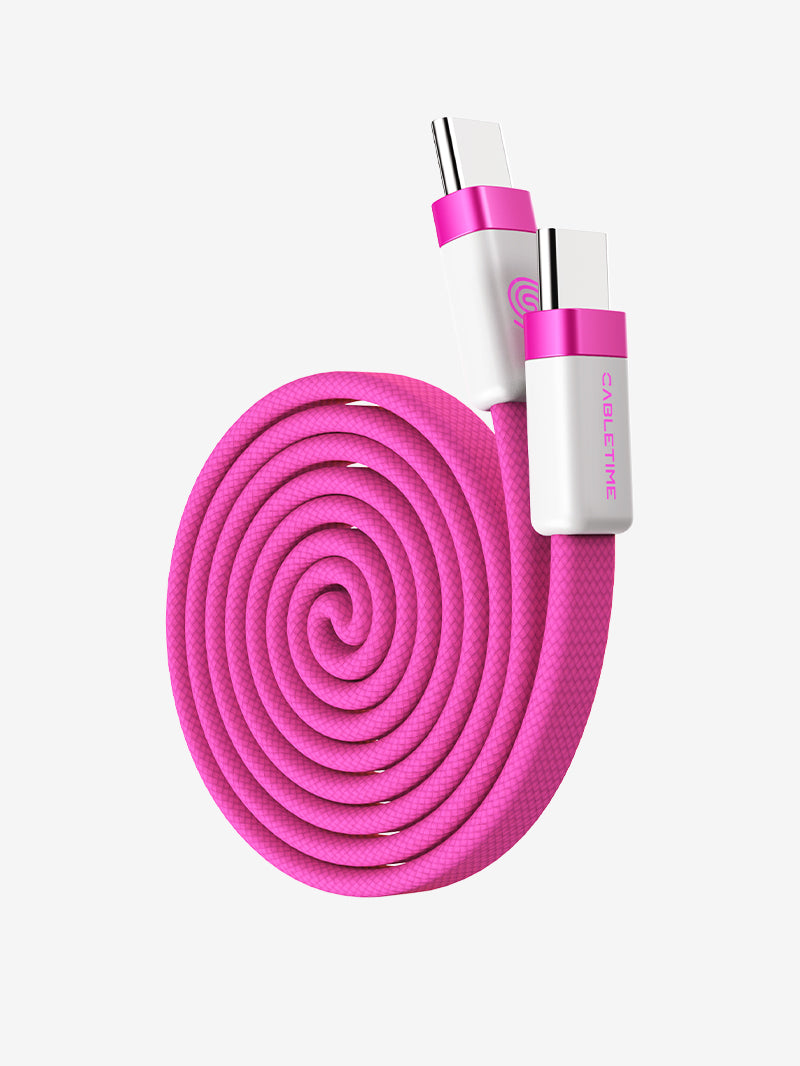
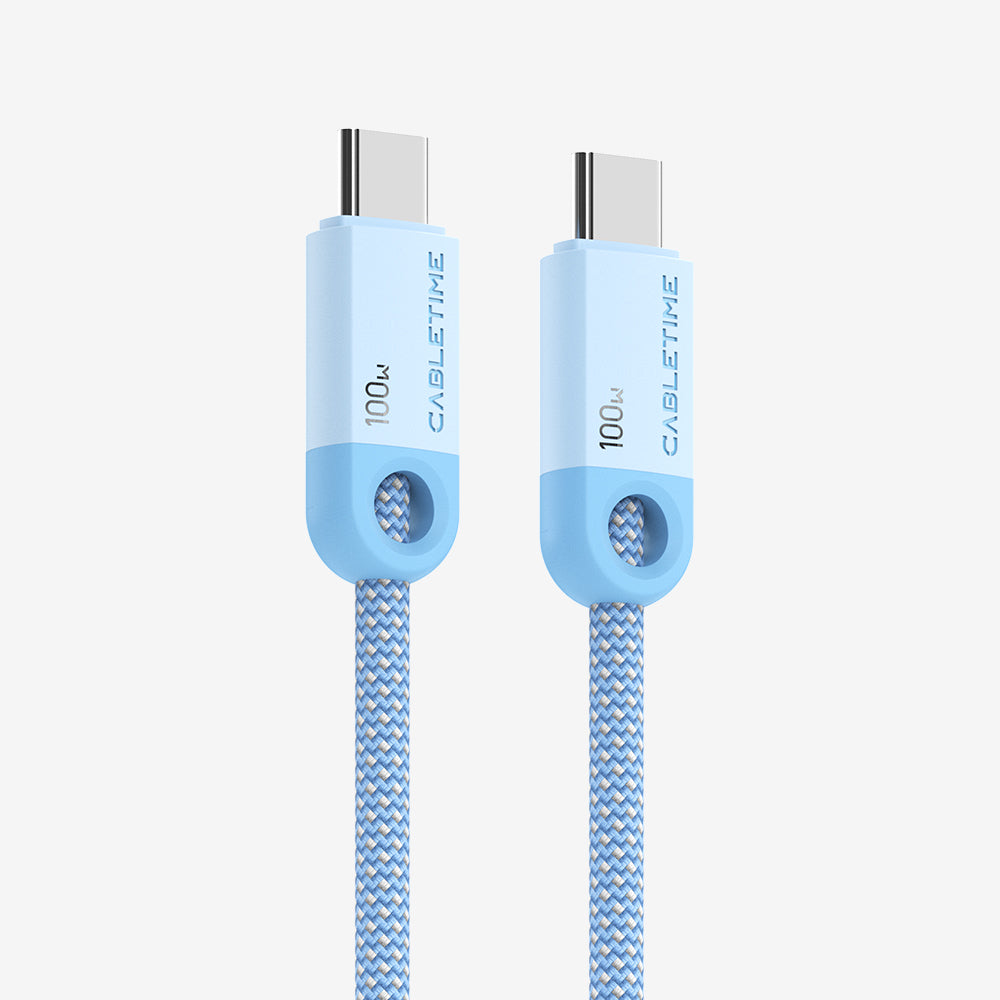


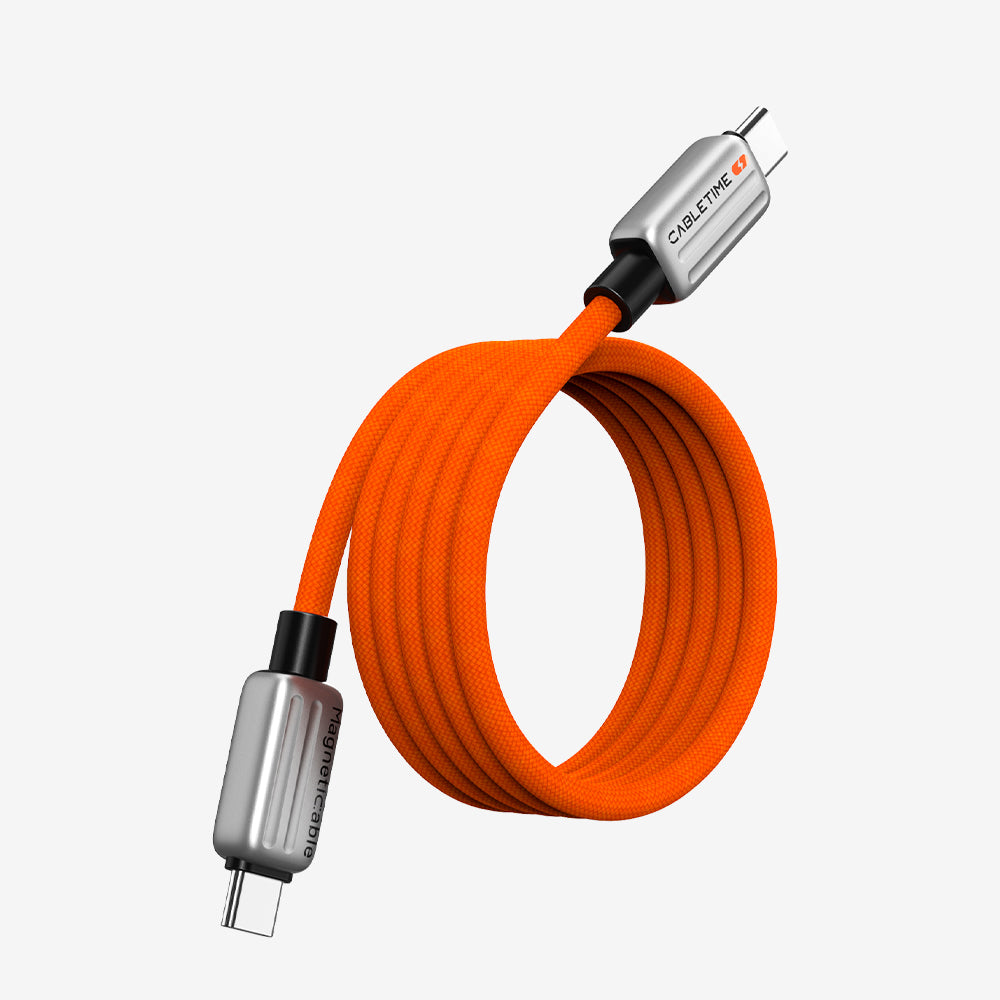
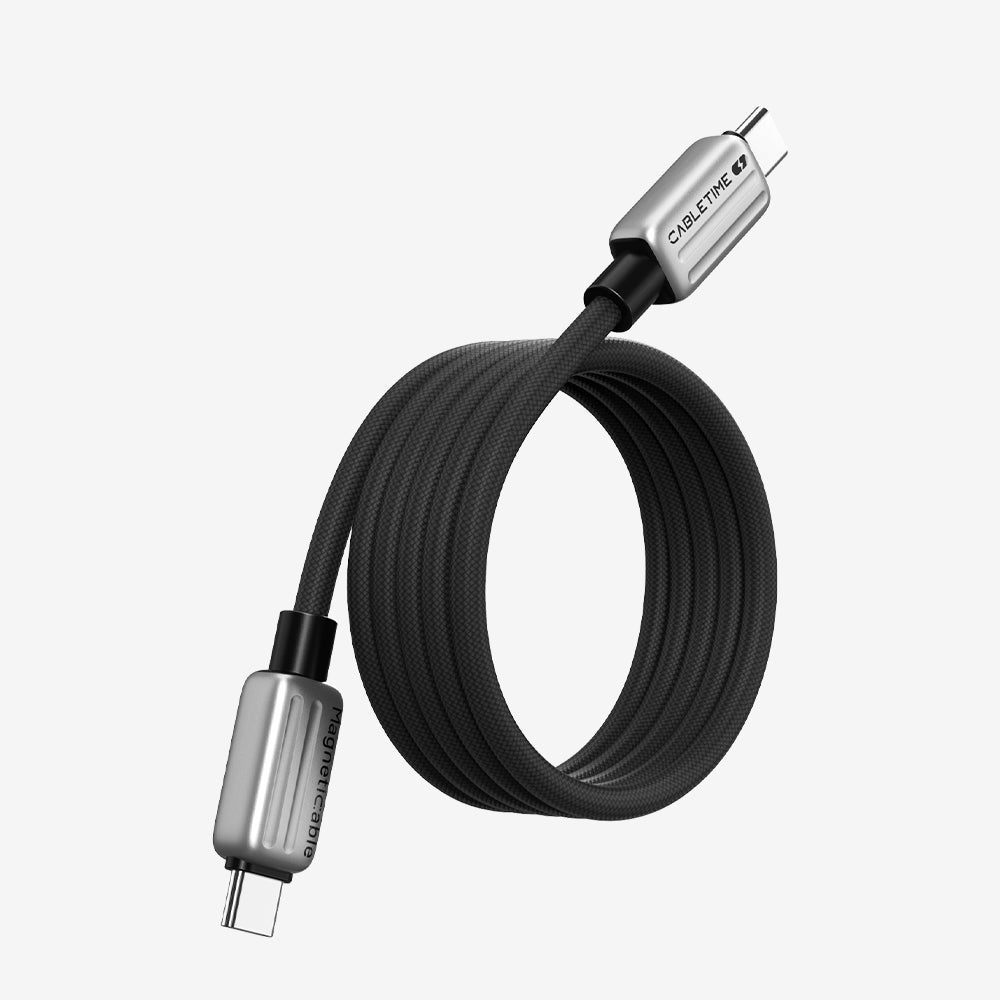
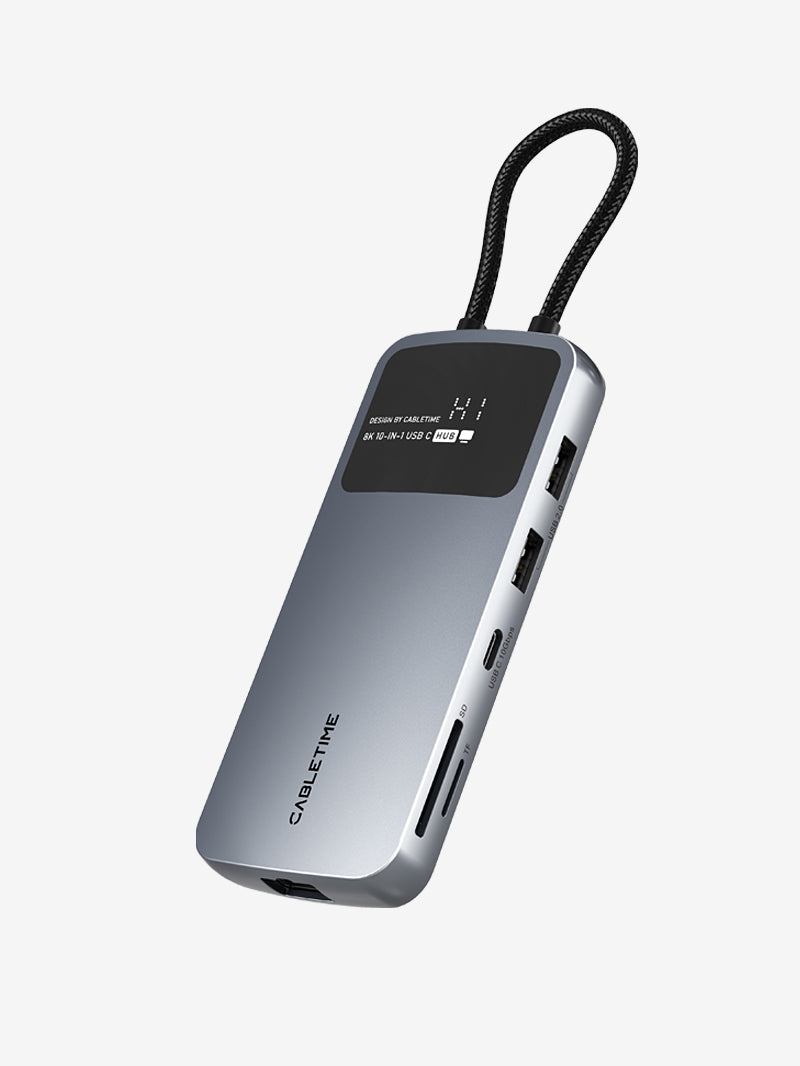
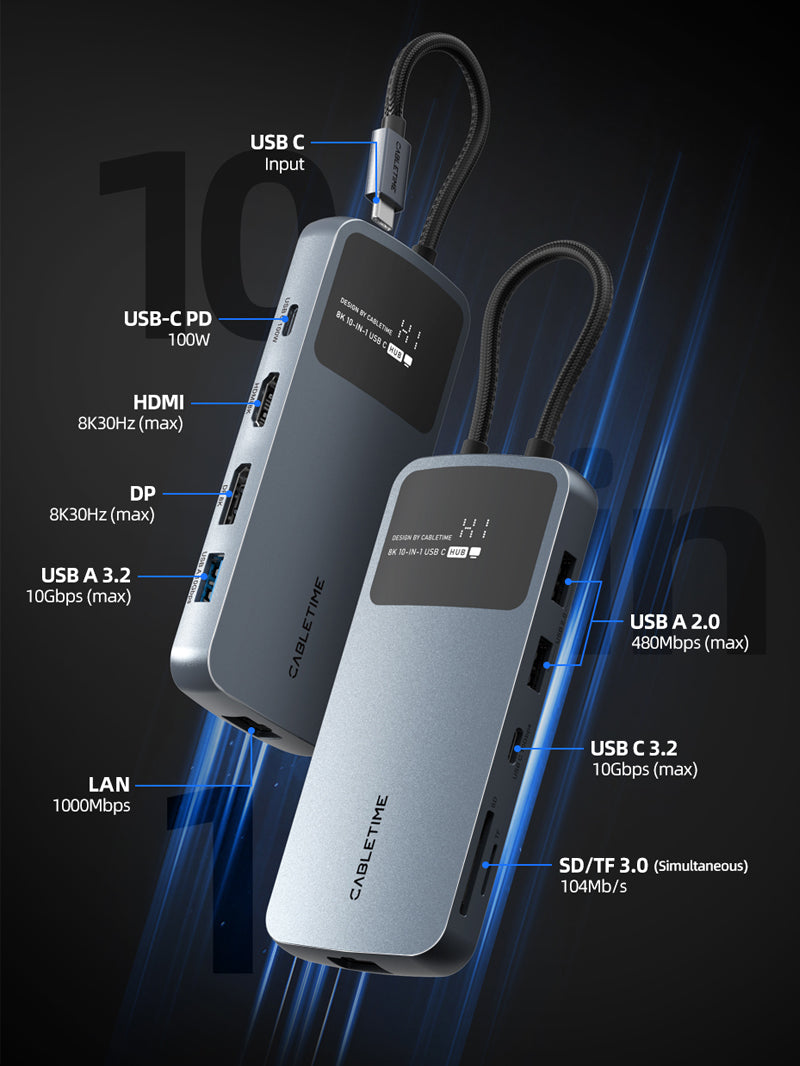
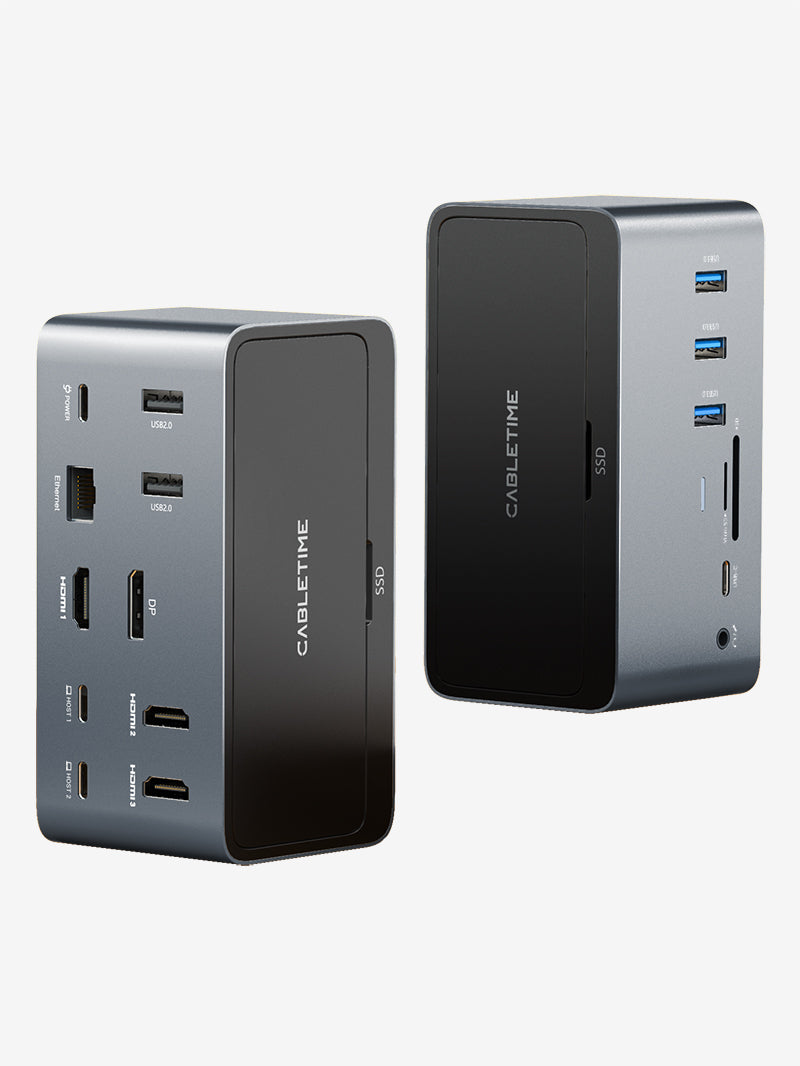
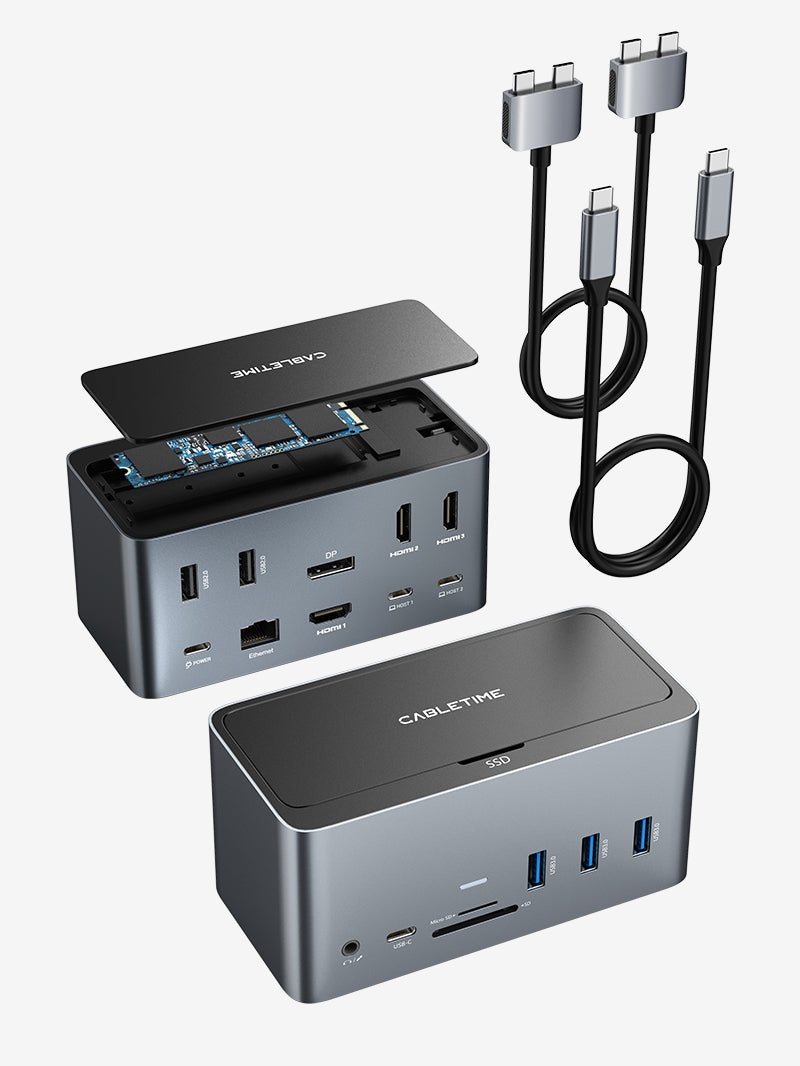


What is the best capture card for Nintendo Switch 2? After testing two different CABLETIME USB-C capture setups with Switch 2 and OBS, the answer is pretty simple:
Choose based on how you want to play — not just the spec sheet.
Both of the capture solutions we tested successfully brought live Switch 2 gameplay into OBS at up to 1080p60. But they are designed for two very different setups.
Want the smallest setup and plan to use your laptop as the screen?
Choose the CABLETIME 1080p USB-C Video Capture Card.
Want to play on a TV or monitor while OBS records on your laptop?
Choose the CABLETIME 5-in-1 USB-C Hub Capture Card.
That difference matters more than simply asking which one has more ports.
Quick Verdict
| Your Setup | Best Choice |
| Laptop is your gameplay screen | USB-C Video Capture Card |
| Record Switch 2 in OBS | Either |
| Stream Switch 2 through OBS | Either |
| Smallest portable setup | USB-C Video Capture Card |
| Use an iPad or compatible tablet | USB-C Video Capture Card |
| Play on TV while recording | 5-in-1 Hub Capture Card |
| Need HDMI output | 5-in-1 Hub Capture Card |
| Need USB-A ports | 5-in-1 Hub Capture Card |
| Want capture + USB-C hub | 5-in-1 Hub Capture Card |
The easiest rule to remember:
Laptop screen = Capture Card
TV screen + Laptop recording = 5-in-1 Hub

What We Actually Tested
We didn't compare these products only from their specifications. We connected both capture devices to Nintendo Switch 2 and tested them with OBS. In our setup, OBS recognized the CABLETIME capture device as a Video Capture Device, and live Mario Kart gameplay appeared in the preview window.
For the 5-in-1 Hub setup, we also tested a second-screen workflow:
Switch 2 → 5-in-1 Hub → TV/Monitor for gameplay + Laptop for OBS
That gave us a much clearer answer about who each product is actually for.
Why “Best Capture Card” Depends on Your Setup
A capture card with more ports is not automatically better. Neither is the most expensive option. For Switch 2, the right product depends more on what your recording setup looks like.
Ask yourself: Where do I want to see the game?
If the answer is: On my laptop, a compact capture solution makes sense.
If the answer is: On my TV or gaming monitor, you need a setup that can send video to the display while also sending a capture feed to the computer.
That is the main difference between the two products we tested.
Option 1: CABLETIME 1080p USB-C Video Capture Card

Best for a Simple Laptop Setup
The compact USB-C Capture Card is the easier choice when you want fewer devices and fewer cables. Your basic setup is: Switch 2 → USB-C Capture Card →Laptop. Then connect USB-C PD power to the capture device.
Your laptop becomes both:
- your gameplay preview
- your recording or streaming computer
This is the more portable of the two setups.
Best for
- recording Switch 2 with OBS
- casual streaming
- laptop gameplay
- portable recording
- smaller desks
- travel
- using an iPad or compatible tablet as a display
- users who do not need HDMI passthrough
The product supports capture up to 1080p60 and PD power for the Switch 2 setup.
What We Saw in OBS

When connected to the laptop, the capture device appeared in OBS under:
Sources → Video Capture Device
In our test setup, the device appeared as:
Cabletime USB
After selecting it, live Switch 2 gameplay appeared in OBS.
Option 2: CABLETIME 5-in-1 USB-C Hub Capture Card

Best for TV Play + OBS Recording
The 5-in-1 Hub Capture Card solves a different problem. Instead of using your laptop as the main gameplay screen, you can play on a TV or monitor and let the laptop record in the background.
The setup is: Switch 2 → 5-in-1 Hub
Then:
HDMI → TV / Monitor
Capture → Laptop / OBS
PD → Charger
This is the more complete desk or gaming-room setup.
Best for
- Playing Switch 2 on a TV
- Recording gameplay on a laptop at the same time
- OBS streamingHDMI output
- USB-A accessories
- PD charging
- Standard USB-C hub use
- Reducing the number of separate adapters
The 5-in-1 combines HDMI output, up to 1080p60 capture, USB-C PD, USB-A connections, and standard USB-C hub functionality.
The Biggest Advantage: You Don't Have to Play Through OBS
This is where the 5-in-1 Hub has the clearest advantage. Capture previews have some processing latency. That doesn't always matter for menus, tutorials, or slower games. But when you're playing something fast — like Mario Kart — even a little delay can affect the experience.
With the 5-in-1 setup: You watch the TV. OBS watches the capture feed. Your laptop doesn't need to be your gaming display.

Capture Card vs 5-in-1 Hub: Side-by-Side
| Feature | USB-C Video Capture Card | 5-in-1 Hub Capture Card |
| Switch 2 capture | ✅ | ✅ |
| Up to 1080p60 capture | ✅ | ✅ |
| OBS compatibility | ✅ | ✅ |
| PD power | ✅ | ✅ |
| Laptop as gameplay screen | ✅ | ✅ |
| TV / monitor output | — | ✅ |
| Play on TV + record on laptop | — | ✅ |
| USB-A expansion | — | ✅ |
| Standard USB-C hub use | — | ✅ |
| Portable setup | Best | Good |
| Full desk setup | Good | Best |
Both can record Switch 2 gameplay. The real difference is what happens around the capture.
Is 1080p60 Enough for Switch 2 Capture?
For most gameplay content, yes.
1080p60 is a practical format for:
- YouTube gameplay
- Tutorials
- Walkthroughs
- Product reviews
- Livestreaming
- TikTok
- YouTube Shorts
- Social media clips
It's also easier for most laptops to encode, edit, store, and upload than 4K footage. If you specifically need professional 4K60 HDR capture, these are not the right products. You should choose a dedicated higher-end capture card designed for true 4K60 HDR recording. The goal of these two products is different: easy, practical Switch 2 capture up to 1080p60.
4K TV Output Does Not Mean 4K Recording
This is especially important with the 5-in-1 Hub. The TV output and capture output are separate.
With the 5-in-1 Hub:
| Signal | Supported Resolution |
| HDMI output to TV / monitor | Up to 4K30 |
| Capture to laptop / OBS | Up to 1080p60 |
So your TV can receive a higher-resolution signal while OBS records at 1080p60. Don't judge the recording resolution by what the TV is displaying.
How Easy Is OBS Setup?
Both products use essentially the same OBS workflow.
1. Connect the Hardware
Connect Switch 2 to the capture device.
Connect the capture device to your laptop.
Connect the required PD charger.
2. Open OBS
Create a new scene if necessary.
3. Add a Video Capture Device
Under Sources, click: +
Then choose: Video Capture Device
4. Select the CABLETIME Device
Open the Device dropdown. Select the capture device. In our test, one of the devices appeared as: Cabletime USB
5. Set 1080p60
Use: Resolution: 1920 × 1080 , FPS: 60, Then click OK.
If the Switch 2 gameplay appears in the preview window, your video connection is working. The original setup uses the same basic OBS process for both products.
Which One Is Better for Travel?
The USB-C Video Capture Card. It's smaller, needs fewer connections, and makes more sense if your laptop or tablet is already your screen. A typical travel setup is simply: Switch 2 + Capture Card + Laptop + Charger
You don't need to bring:
- TV
- Monitor
- Separate hub
- Extra HDMI connection
If portability is your priority, this is the better choice.
Which One Is Better for a Gaming Desk?
The 5-in-1 Hub Capture Card. If your normal setup already includes a TV or monitor, the hub gives you a more natural gaming workflow:
Play on the big screen.
Record on the laptop.
You also get USB-A expansion and standard hub functionality. This makes the product useful even when you're not actively capturing gameplay.
Can the 5-in-1 Work as a Normal USB-C Hub?
Yes, with compatible USB-C devices. Outside Switch 2 capture, it can also support functions such as:
- HDMI display output
- USB accessories
- USB data
- PD charging
- laptop expansion
That gives the 5-in-1 a broader role than a single-purpose capture device.
Which Capture Card Should You Buy?


Choose the USB-C Video Capture Card if:
- your laptop is your screen
- you want the smallest setup
- you travel with your Switch 2
- you want simple OBS recording
- you want fewer cables
- you want to use a compatible iPad or tablet
- you don't need HDMI output
Choose the 5-in-1 Hub Capture Card if:
- your TV or monitor is your gameplay screen
- your laptop is your recorderyou want HDMI output
- you want USB-A ports
- you want capture and hub functions together
- you want a cleaner permanent desk setup
Neither one is universally “better. They are better for different jobs.
What is the best capture card for Switch 2?
For a simple laptop or tablet setup, choose the CABLETIME USB-C Video Capture Card. For TV gameplay while recording on a laptop, choose the CABLETIME 5-in-1 USB-C Hub Capture Card.
Do both CABLETIME capture products work with OBS?
Yes. Both products are designed for Switch 2 capture up to 1080p60, and both can be added to OBS as a Video Capture Device.
Can I record Switch 2 at 1080p60?
Yes. Both products support capture up to 1080p60.
Can I play on a TV while recording?
Yes, with the 5-in-1 Hub Capture Card. It can output gameplay to a TV or monitor while sending a separate capture feed to the laptop.
Can I use my laptop as the Switch 2 screen?
Yes. The compact USB-C Video Capture Card is the simpler choice for this setup.
Do I need a PD charger?
Yes. For Switch 2 capture or TV mode, use the original Switch charger or a 39W+ PD charger.
Why is there some delay in OBS?
The capture feed has to be processed before appearing in OBS. For fast games, play directly on a TV or monitor using the 5-in-1 Hub while OBS records in the background.
Can I use an iPad or tablet?
A compatible tablet or USB-C iPad can be used with the USB-C capture setup when paired with an appropriate UVC video app.
Do I need a more expensive 4K capture card?


