





Get Started
Before You Begin
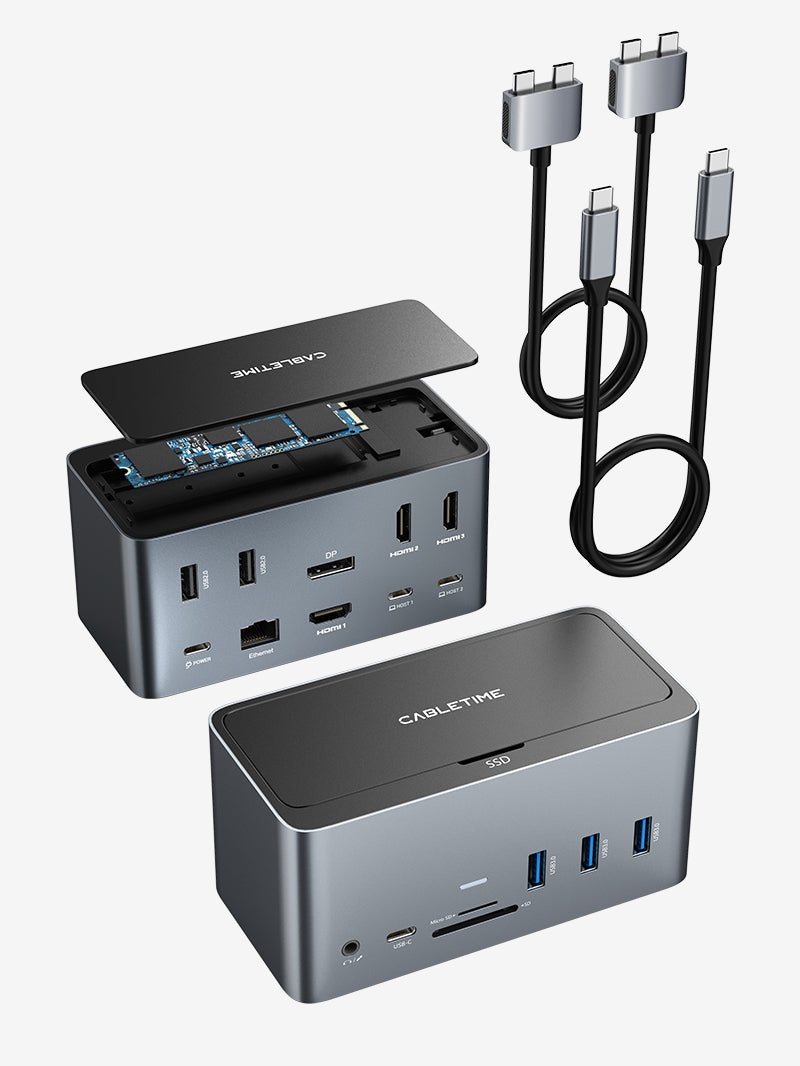
1. Confirm you have all of the components that should be included in the box with the TBT-6950PD docking station:
TBT-6950PD docking station unit
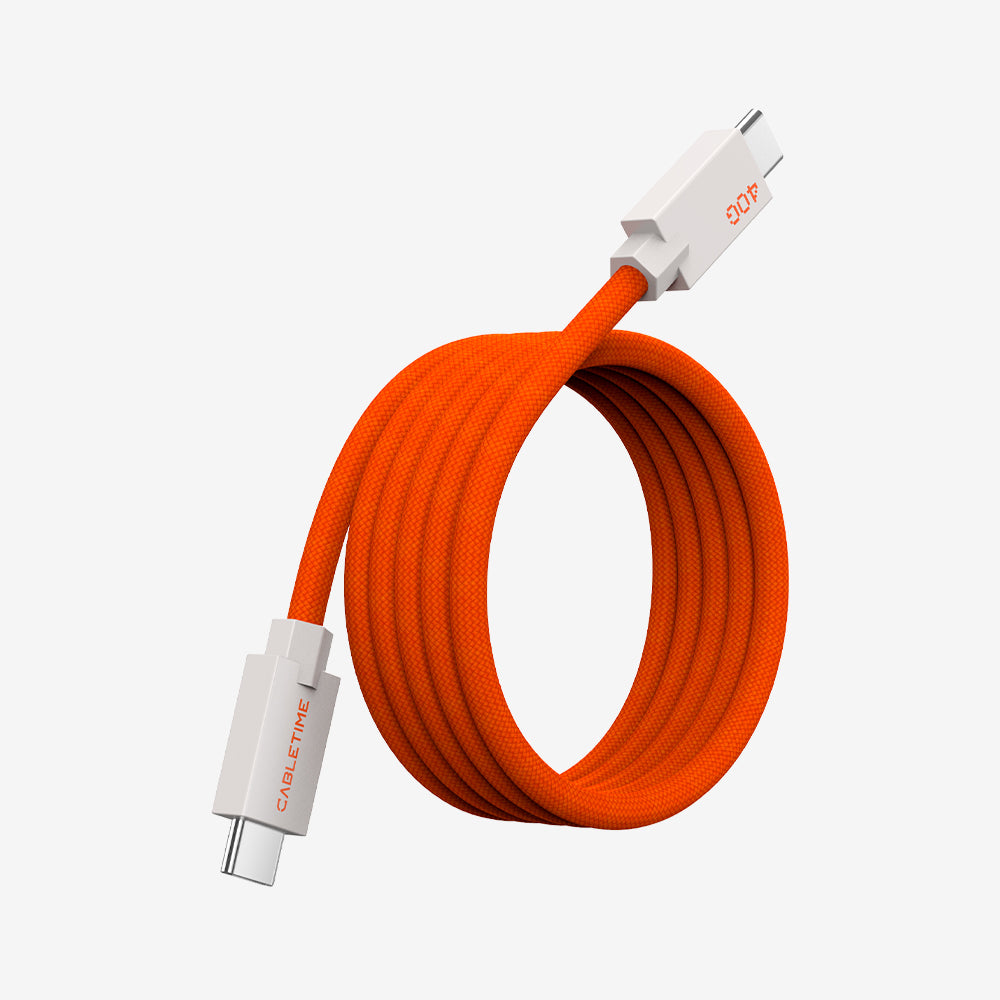
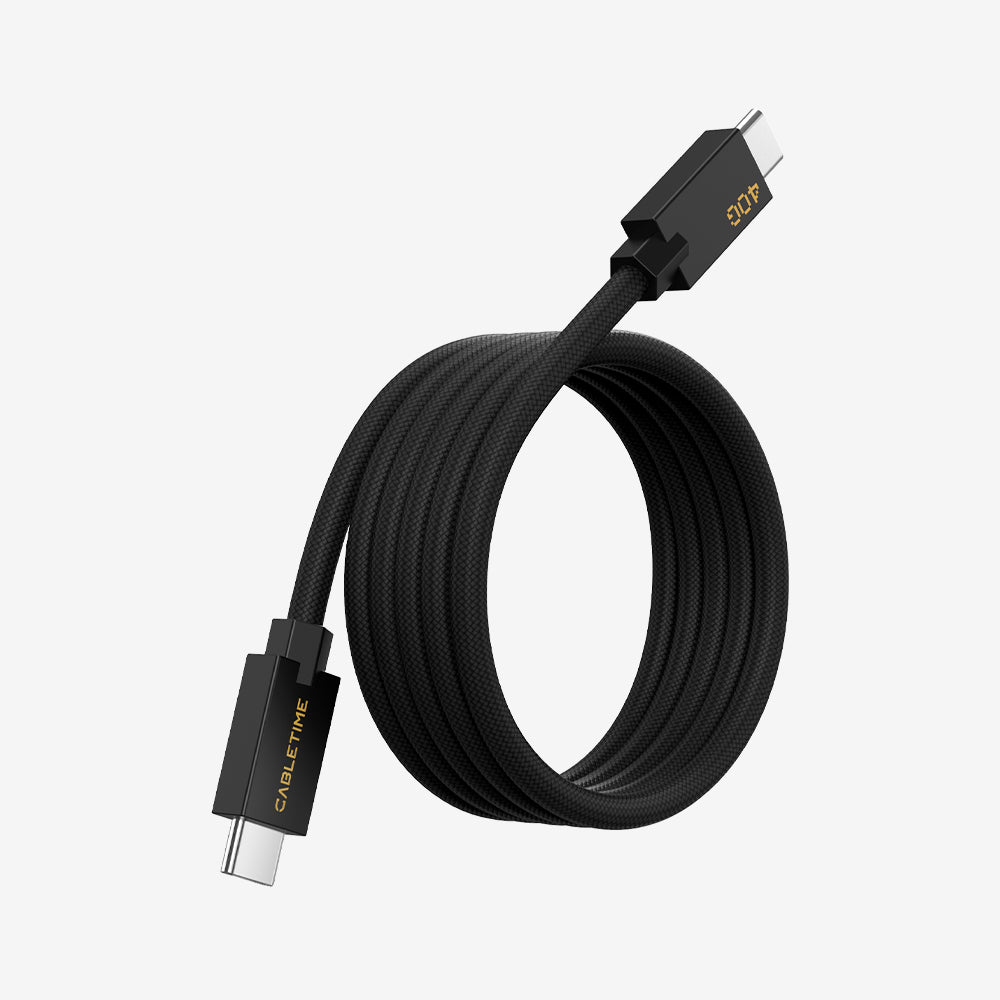
Thunderbolt 4 cable
AC/DC Power adapter
Power cable
2. Connect the power cable to the power adapter
3. Connect the power adapter to the TBT-6950PD
4. Connect the power adapter to an electrical power outlet
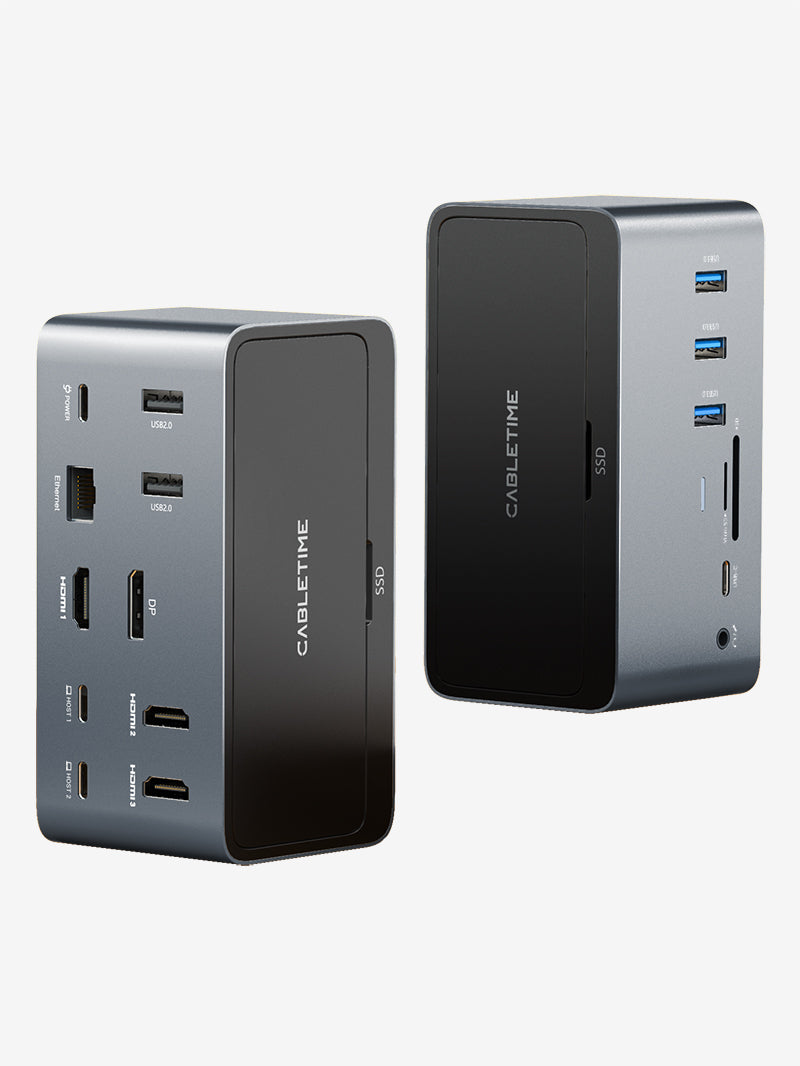
5. Connect your peripherals to the TBT-6950PD
macOS Installation and Setup
Detailed installation and configuration instructions can be found by clicking on the "INFO" button, or in the next step.
Please follow the detailed instructions below to install and configure the DisplayLink software for your version of macOS:
Connect the power supply to your wall socket or power strip, and then to the docking station.
Connect the displays to the docking station.
Using the Thunderbolt cable provided with the docking station, connect the dock to the computer through the dock's host Thunderbolt port labelled with a Laptop icon .
Windows Installation and Setup
Connect the power supply to your wall socket or power strip, and then to the docking station.
Connect the displays to the docking station.
Using the Thunderbolt cable provided with the docking station, connect the dock to the computer through the dock's host Thunderbolt port labelled with a Laptop icon .
ChromeOS Installation and Setup
No driver download is necessary, through ChromeOS version 100 or later is required.
Connect the power supply to your wall socket or power strip, and then to the docking station.
Connect the displays to the docking station.
Using the Thunderbolt cable provided with the docking station, connect the dock to the computer through the dock's host Thunderbolt port labelled with a Laptop icon.